


Machine translation
Synchra24 1.2.5: sessions, user-friendly filters and updated MotionCode
Major update: user visits and QR passes, advanced filtering, quick swipe actions, new MotionCode panel and improved scanning.
In Synchra24 1.2.5 A service for user visits has been added, and the usual work sections have become more convenient: we have expanded filters, added quick actions to lists, and improved the interface. A separate large part of the update is the MotionCode panel and the scanner in the mobile application.
Important: Update the app and the dashboards on your tablets. To work with the new MotionCode format, be sure to install the current version of the mobile application for employees and update the application. "MotionCode panel" on all tablets, where the start and end of the work are marked. If you are using an old panel installation, replace it with the current one. Updating the employee's app alone is not enough.
Visits: from invitation to completion of the visit
New service "Visits" helps to organize visits to the office, warehouse or production. The administrator, the security guard and the receiving officer see information in one card: who is coming, from which organization, for what purpose, in which car and at what time he is expected.
The session is created step by step. You can select a person from the list of repeat visitors or fill in their details, add a photo, specify the address on the card and appoint a receiving employee. Scheduled dates and actual marks are stored separately, so after completion, you can see how long the visit actually lasted.
Admission to the territory is a separate decision. Allowing entry does not replace the arrival mark, and arrival in itself does not mean that a visitor can be missed. The rights to view, issue, and approve access are assigned separately: you don't have to be a supervisor to handle visits.
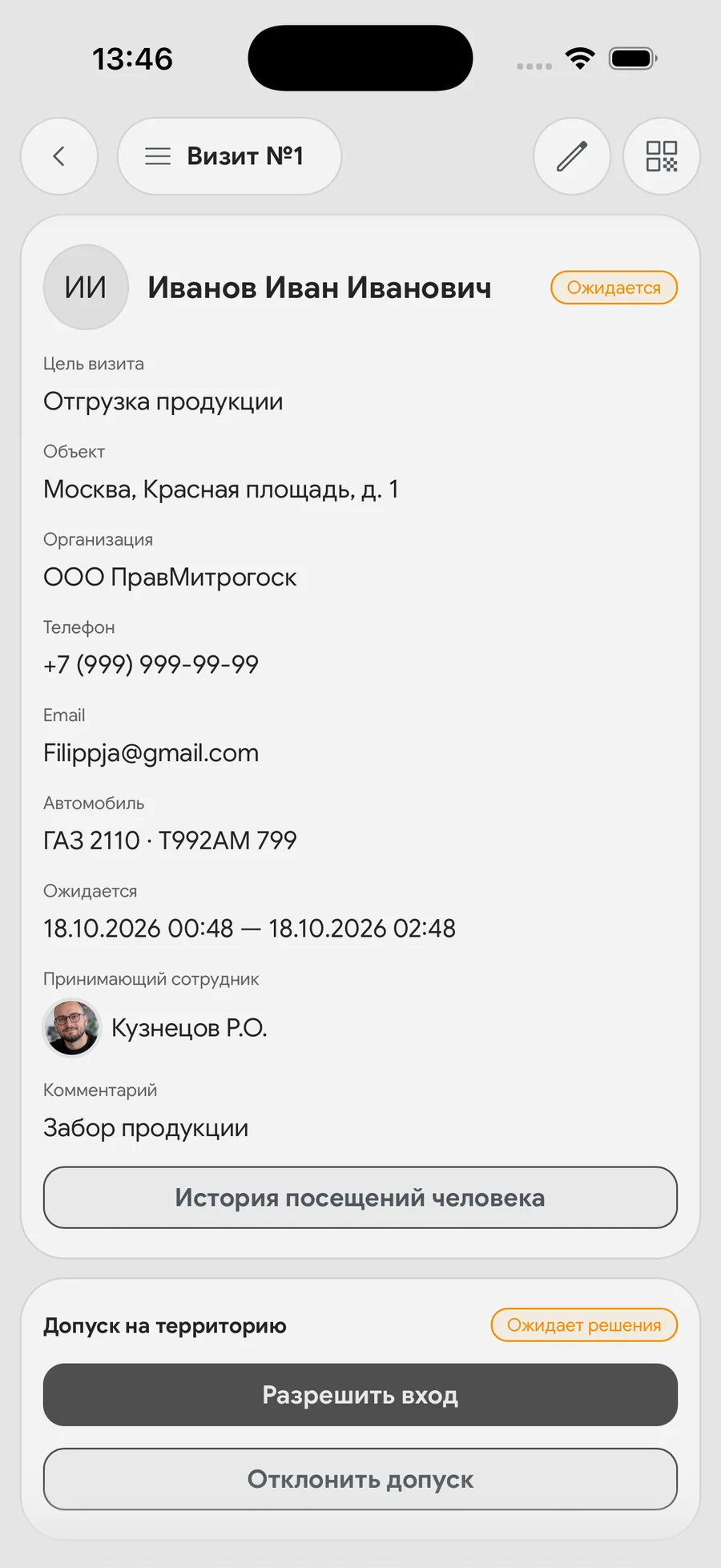
QR pass and arrival without installing the app
A personal QR pass can be sent to the visitor. The employee reads it, opens the required card and confirms the action. The story saves the time, the author, and the method of marking.
If you enable "Independent arrival mark", the visitor receives a link to a mobile web page with a button "I have arrived". The driver can check in without leaving the car. The browser will request geolocation, and the receiving employee will receive a push notification. If the coordinates could not be obtained, the arrival is still recorded with the appropriate mark. The entry permit is still issued separately.
The service is available in Trial, Pro, and Ultimate. It is intended for visits and does not replace freelance work shifts or salary calculations.
For integrations, Open API methods and automation events are provided: session creation and modification, arrival, entry, completion, cancellation, non-appearance, admission decisions, and pass issuance. Data can be transferred externally, and sessions can be created and updated from an external system via the API.
More detailed: instructions for sessions, automation events and Open API.
Filters that help you find what you need faster
Instead of disparate settings, we have compiled the conditions into convenient filtering blinds and expanded the set of parameters in the working sections.
- Tasks: multiple priorities at the same time, performers, and due dates — the next 24 hours, three days, or overdue unfinished tasks.
- Incidents: statuses, priorities, authors and performers.
- Applications and approvals: statuses, applicants, concordants, and the date period are all in one window.
- Documents: signature status and signatories.
- The Client Hub: grades, statuses, shift staff, and period.
- Score 360: employees, the company, and the range of the average score, which is conveniently set using a slider.
Conditions have become easier to combine, and the fixed apply and reset buttons remain handy when scrolling through filters.
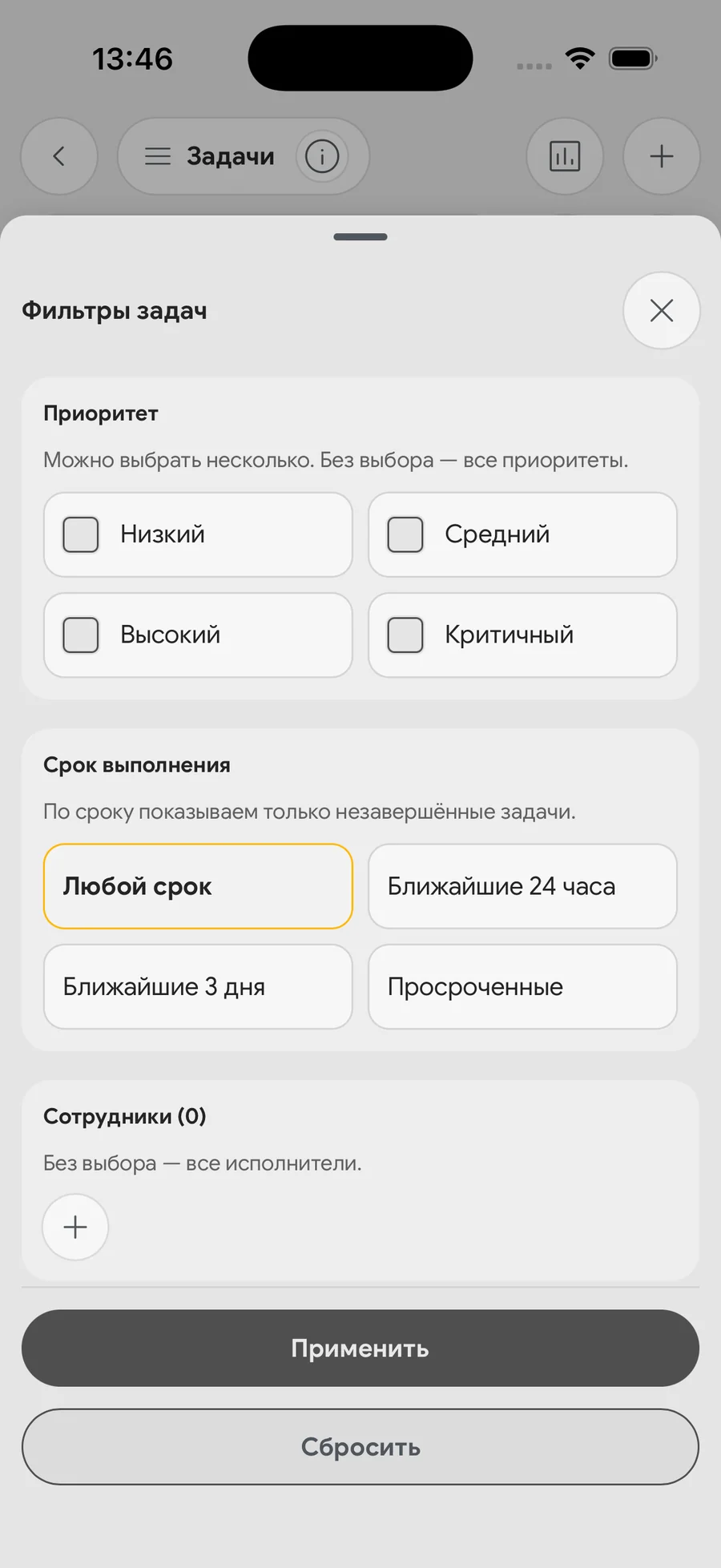
Quick actions right in the lists
For frequent transactions, you no longer always need to open a card. Slide the list item to the side to see the available actions, and click the appropriate button.
For example, you can quickly mark completion or cancellation in the task list. In the chat archive, swipe left to open actions "Return from archive" and "Delete". The set of actions depends on the section, the current status of the record, and your rights.
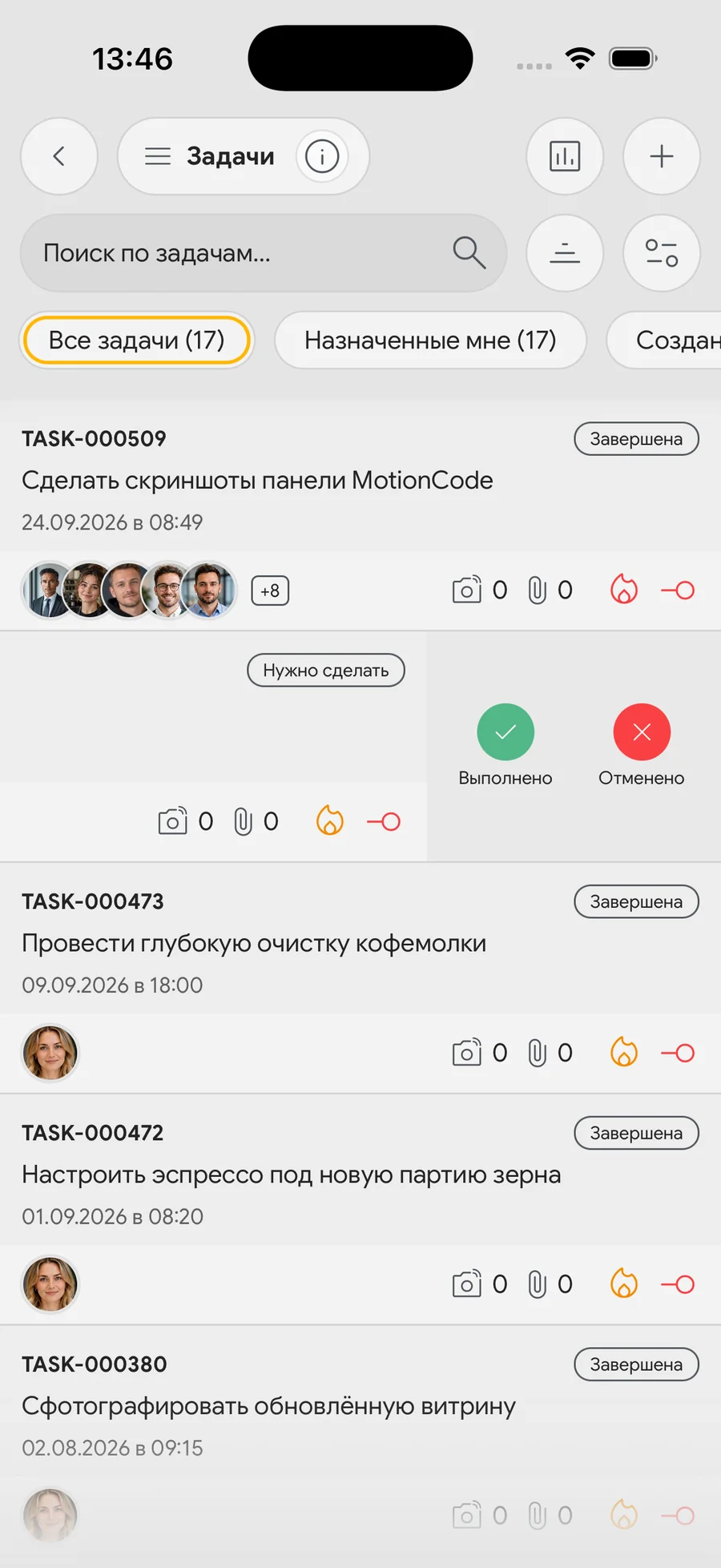
We've also brought fields, statuses, and list items to a common style, improved employee selection, and date ranges. These changes make everyday operations clearer and reduce unnecessary screen transitions.
Updated MotionCode panel
The panel has received a clearer layout: the scanning area is separated from the actions, and the connection status is clearly visible in the header. Updating the code, switching to offline mode, and available marking methods are collected in a separate section. Basic actions are easier to find both on the tablet and in the browser.
Under the dynamic MotionCode appeared barcode for reading the session ID. It helps the app get the desired number faster without recognizing a long line of text. The confirmation of presence by the dynamic code itself is saved: the barcode does not replace this stage.
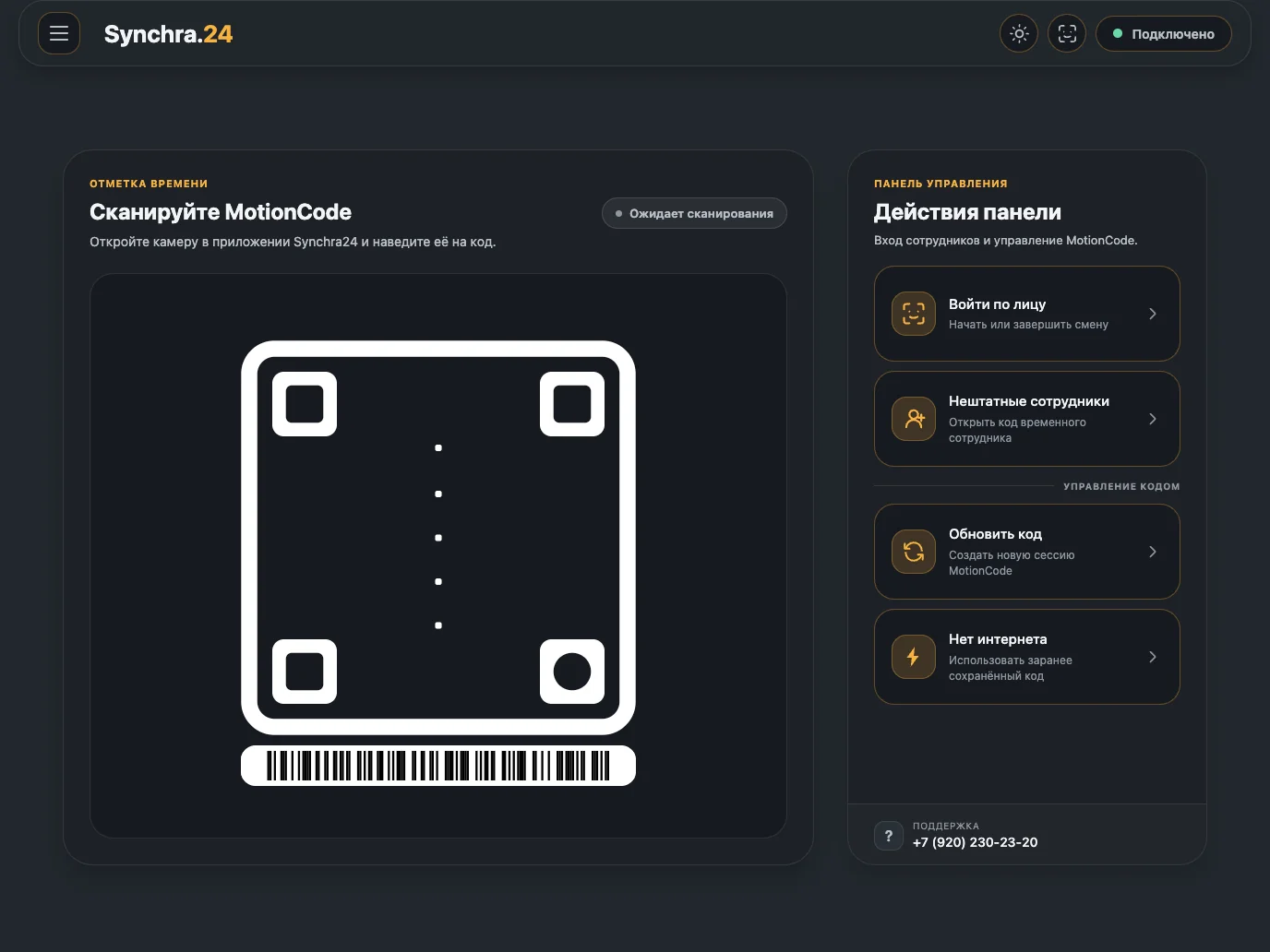
The scanner has become more reliable and convenient
Previously, the application recognized the text number on the panel. Now the session ID is read from the barcode under the MotionCode. This reduces the chance of errors in recognizing individual digits and helps you move faster to checking the dynamic code.
We have also improved speech recognition on Android and fixed bugs in offline scenarios. Marks in the absence of the Internet are now processed more correctly and reliably.
The setting appeared "Scan automatically": open it Application Settings → Motion Code and turn on the switch. The scan button will disappear, and the process will begin immediately when the barcode is read and the code frame is found. By default, the usual launch button remains.
How to upgrade
- Update the employees' mobile app to Synchra24 1.2.5 or a newer version.
- Be sure to update the "MotionCode Panel" on every work tablet. by replacing the old installation with the current one, if necessary. If the panel is open in the browser, reload the page.
- Make sure that the barcode is displayed under the dynamic code, and make a test mark from the updated phone.
- To start working with sessions, assign employees the necessary rights in the company.
Current applications and the dashboard are available on the download page.