


Machine translation
Synchra24 1.3.0: New features for incidents, MotionCode, and custom services
Working groups and monitoring of the timing of incidents, updated panel and MotionCode scanner with Bluetooth support, serious refinement of custom services. Be sure to update the mobile app and dashboard.
Comes out Synchra24 1.3.0. In this version, we have expanded our work with incidents, improved the MotionCode panel and mobile scanner, added the ability to launch a supported panel via Bluetooth, and significantly improved the system of custom services.
Be sure to update the mobile app and the MotionCode Dashboard. Employees need to install the latest version of Synchra24 on their phones, and administrators need to update the dashboard app on all Android devices in the facility. Updating just one side is not enough: the new MotionCode features require compatible versions of the app and dashboard. If you are using a browser panel, reload its page.
Incidents: from treatment to outcome
Incident management has become more detailed at each stage: when creating a request, appointing a contractor, monitoring deadlines, and evaluating the result. For example, you can send a fault message to the queue of the desired group, transfer it to the contractor, check the fulfillment of the checklist and see the processing history in one card.
Workgroups and dispatching
Requests can be assigned to specific employees or directed to the queue of the working group. The participant accepts the request for work, and the responsible person can appoint a performer, return it to the queue, or transfer it to another group.
For processes with preliminary analysis, it is provided dispatch group Questioner: first, the request goes to the dispatcher, then to those who will do the work. The section now has separate lists of the group queue, the incidents you created and assigned to you.
Reaction time and solutions
Now you can separately control, how quickly was the appeal accepted? and when the execution was completed. The standards are set in a template or a working group and depend on the impact of the problem on the production process.
The countdown can run around the clock or only during business hours, taking into account the schedule, time zone and excluded dates. The status of deadlines is visible in the card, filters, and statistics. Requests without configured control can be found separately.
More information in the request
Additional fields are added to the templates: text, number, date, one or more options from the list. The required fields help to collect the necessary information when creating a request, so that the performer does not have to request them separately.
You can attach to the template the checklist — for example, to check the equipment after repair. The performer passes it from the incident card, and the result remains linked to the request.
Contractor's contacts and evaluation of completed work are available for contractor groups. from 1 to 5. The history of actions shows who accepted the request, appointed the contractor, transferred the work or completed it, and statistics help assess compliance with deadlines and the results of contractors. The available actions depend on the employee's role and authority.
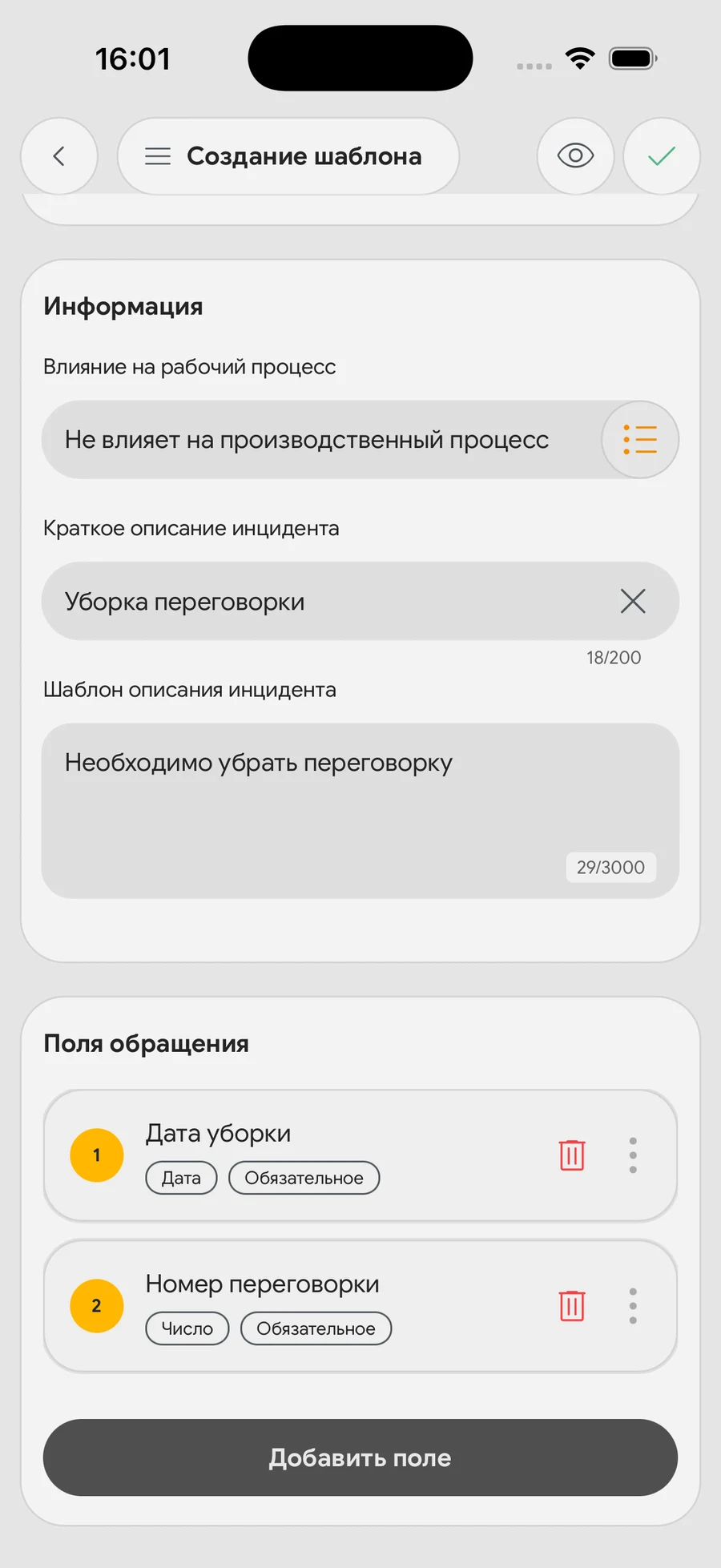
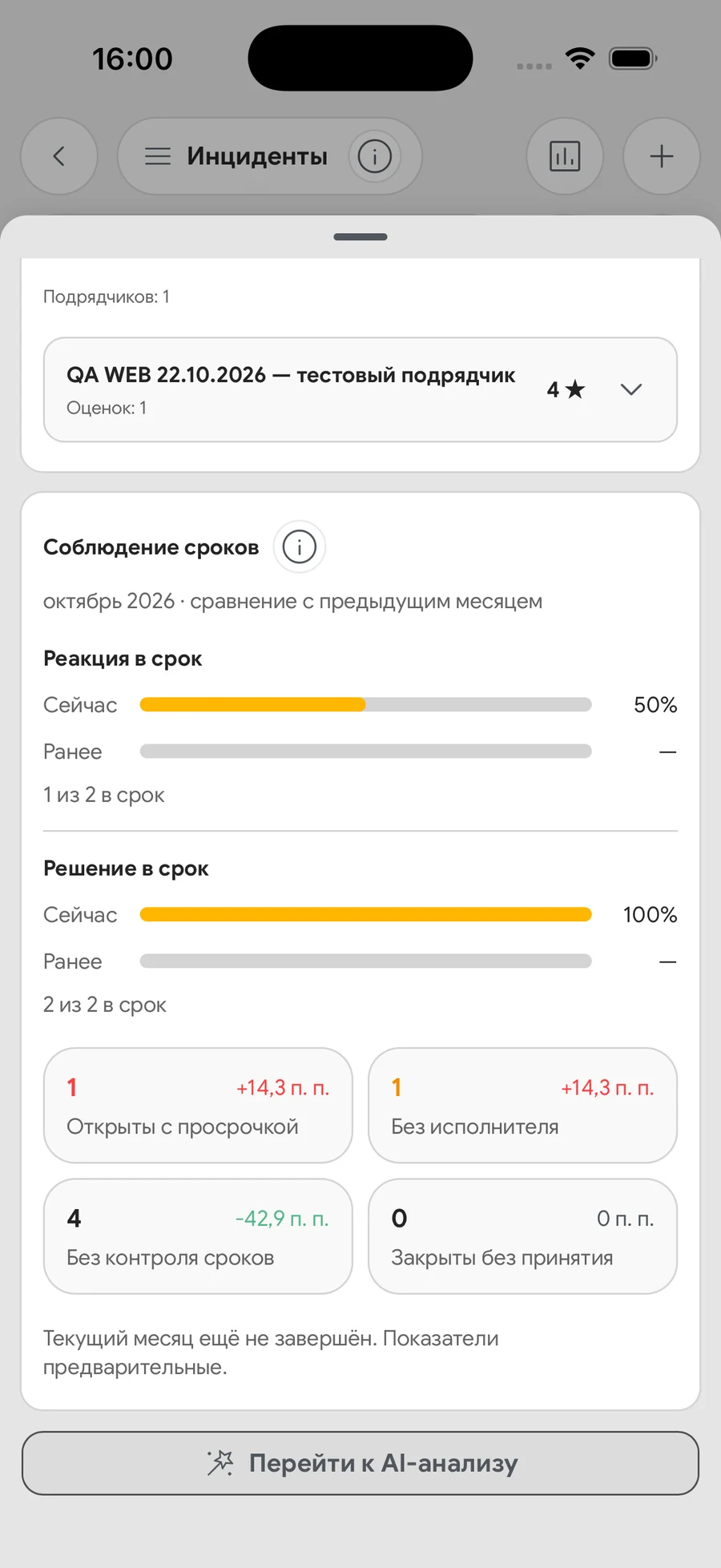
More detailed: dealing with incidents and setting up templates, groups, and deadlines.
MotionCode: Updated dashboard and mobile scanner
We have finalized the bundle of the mobile application and the MotionCode panel. The employee still points the camera at the code and confirms the start or end of working hours, and the application takes into account the available ways to communicate with the panel.
Launching the panel via Bluetooth
If the phone and the panel support Bluetooth and the necessary permissions are granted, the scanner can use it to launch the panel. Bluetooth availability is checked already when the scanner is opened.
If Bluetooth is turned off, unavailable, or not enabled, the app immediately uses internet startup. If the search for a supported panel has failed, the wait is terminated. in no later than 6 seconds after that, the application proceeds to launch over the Internet. Keep the camera pointed at the code while speech recognition is in progress.
The browser panel works via the Internet and does not accept commands via Bluetooth. The updated scanner recognizes this feature and skips unnecessary searches. For a typical online scenario, both the phone and the dashboard need a connection.
Bluetooth does not replace panel permissions and offline accounting conditions. If there is no Internet connection, use only the offline script provided for your dashboard; the final processing of the saved mark takes place after the connection is restored.
Panel Application Updates
The Android panel application provides for downloading compatible interface updates. The panel checks them at startup and then periodically, and applies them during downtime without interrupting the scan.
For older installations without such support, as well as when changing the capabilities of the panel application itself, you will need install the current APK. Therefore, before upgrading to 1.3.0, update the dashboard on each device, and then check the scan from the updated employee's phone.
Instructions: configuring and updating panels, time tracking via MotionCode. The panel installer is available on the page "Getting started".
Custom services: serious revision of the system
In 1.3.0, we have significantly improved the tools for creating and using our own services. They help you add an internal form, calculator, dashboard, or other working tool to your company's processes.
- Editor and preview. The code can be downloaded from files, formatted, and exported to ZIP for reuse. A preview with test data helps to test the interface before publishing, saving the company's operational data.
- AI assistant. Describe the desired scenario, study the proposed changes, and apply them to the draft. Verification, saving, and publishing remain under your control.
- Separate settings for the web and mobile app. The administrator chooses where to show the service. These settings complement employee access rights and subscription requirements.
- Widgets in the workspace. A custom service can work as a dashboard widget. Separate sizes for the phone and web versions are available, as well as an automatic height for the content. The supported cards have their own widgets and actions.
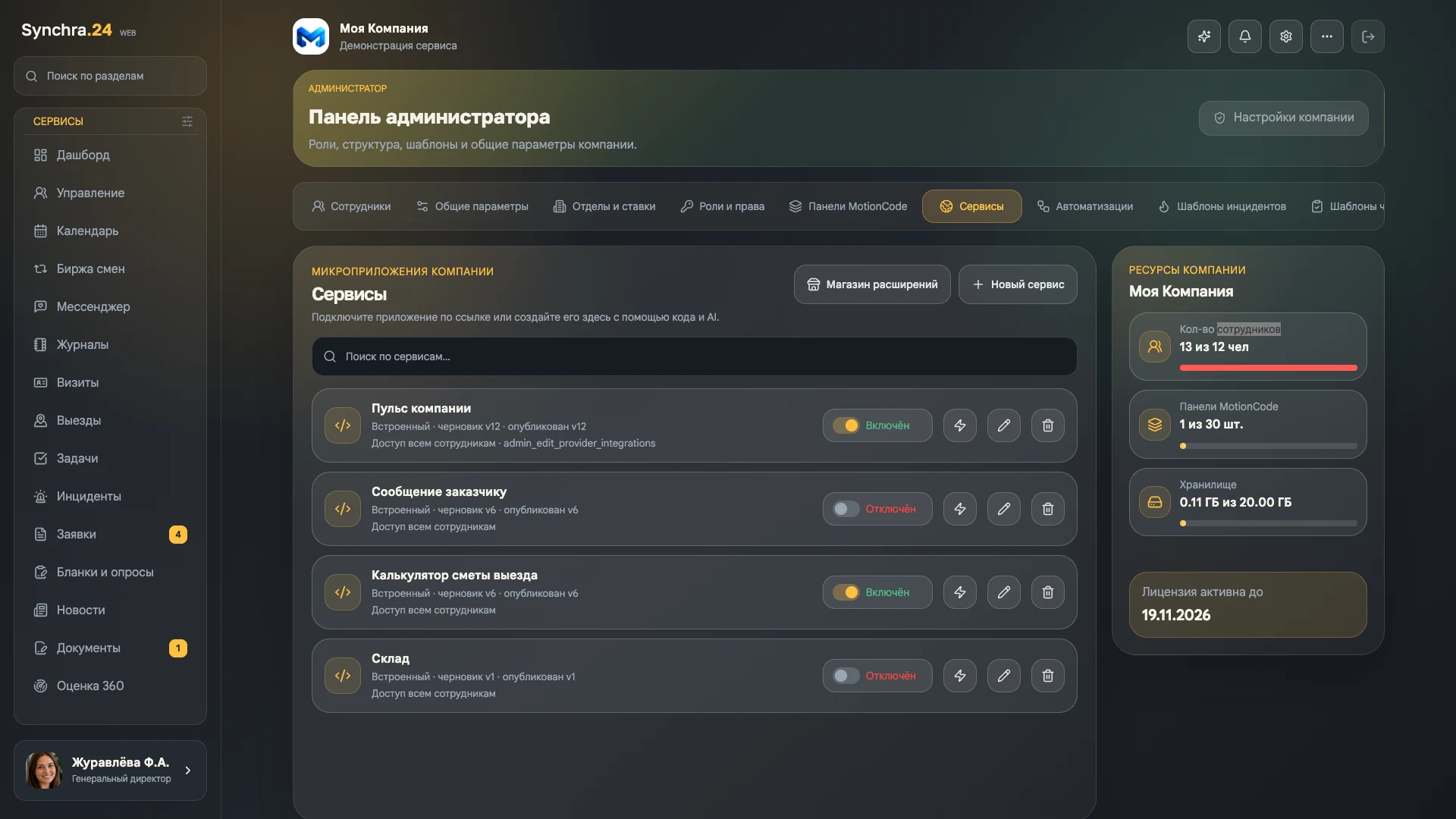
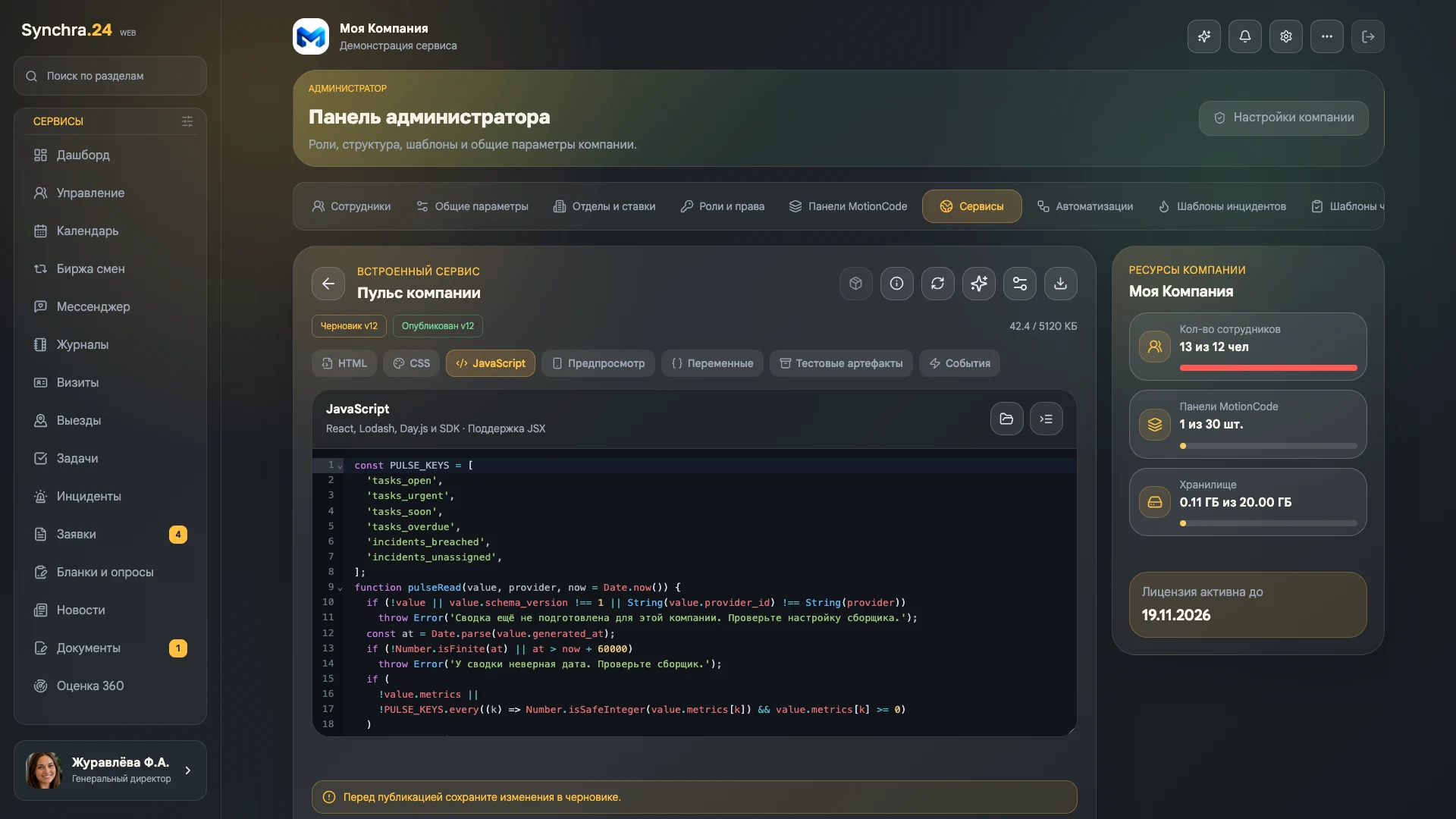
To manage the services, you need the appropriate subscription capabilities and rights. Using an AI assistant also requires access to an AI assistant.
Start with guidelines for the service editor, and explore the placement options in widget instructions.
Before starting work
- Update Synchra24 on employees' phones.
- Update the "MotionCode Panel" on all Android devices of the object. Restart the web panel in the browser.
- Check the start and end of working hours on one panel, then proceed to the other devices.
- If you use incidents, check the groups, appointments, deadlines, and credentials. For custom services, check employee access and display on the appropriate platforms.
Detailed instructions on the changes are already available in Synchra24 documentation.